Users
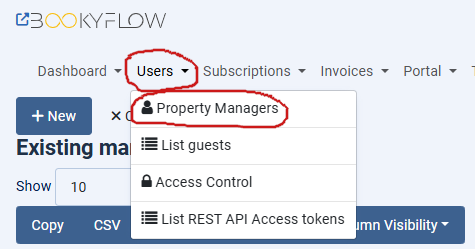
Property managers
There are two main types of Property managers in Bookyflow, normal property managers, and super property managers. The third type, Receptionist, is a normal property manager which can access a reduced set of features, usefull for somewhat larger organisations.
In total there are effectively 5 types of users :
- Guests (non-logged in visitors to the site)
- Registered users (logged in users who are not managers)
- Receptionists
- Property Managers
- Super Property Managers

As a Site Manager, you may think that you’re not a Property Manager, but that’s not necessarily true.
When Bookyflow is first installed it will find the site’s administrator user and create a super property manager for the site, who appears in this page. If you’re the user who installed Bookyflow, chances are good that you’re a super property manager. If you’re using one of the Quickstarts and you logged in with the username ‘bookyflow’ then you are probably a super property manager.
This allows new Bookyflow users the chance to administer properties straight away, however you can also assign registered users to existing properties to make them property managers.
In Site Configuration > Portal Functionality tab there is an option ‘Users can register their businesses?” which by default is set to Yes. If that option is set to Yes, then any registered user can create their own properties through the frontend of Bookyflow. In the frontend Bookyflow main menu there’s an option that registered users can click to add their own properties. This means that there’s no need for complex registration functionality to add managers, they can add themselves.
All normal Property Managers can only administer properties that they have created, or properties that they have been given manager access to.
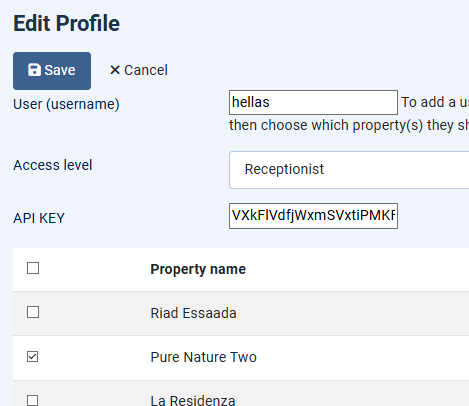
If you want to assign a manager to a property then click on their name in this page and click the checkbox next to the name of the property and click Save.
If you want to make a normal registered user a property manager then click New and in the next page type in the first few characters of their CMS username. It’s important that you click on the user’s name, don’t just type their name in this field. Once the user has been found then click the name of the property you want to assign them to and click Save.
You cannot assign super property managers to individual properties. This becomes important later when dealing with webhooks. Webhooks are associated with individual managers, not individual properties. This is because relationships between managers and off-site services such as Zapier are between the manager and Zapier, not the property and the Zapier. In Bookyflow a property can have multiple managers, but it would be insecure to allow ManagerA to see Manager B’s sensitive connection information to remote sites, therefore webhook clients are per-manager, not per-property.
As a result if a manager wants to work with webhooks then they need to be a normal manager, not a super property manager.
List guests
Earlier in this document we stated that there’s a clear delineation between site managers and property managers, so why is this option here?
It’s to allow the site to remain compliant with the GDPR.
All users who make bookings become registered users. This means that, should they desire, they’re able to visit your site and view all of their Personally Identifiable Information (PII). If their status allows (they don’t have outstanding bookings, for example) then they can opt to delete that PII.
As a site is used guests will make bookings, managers will join and leave. Some may not delete their properties when they go. Because properties can have multiple managers (remember, Receptionists are managers too, albeit with fewer features available to them), it’s not always practical to automatically delete all guests of a property when a manager is removed. Additionally guests can have records with their Personally Identifiable Information (PII) in them that are not associated with any properties in their Profile information where they can edit their account.
As a result, there is the potential for guest records to become orphaned. In the event that a guest contacts the site then the Site Manager (that’s you) can visit this page and if the guest demands it, you can then anonymise their data here.
All PII is stored within Bookyflow using very strong encryption. You cannot easily search tables for their details, hence the need for a page like this.
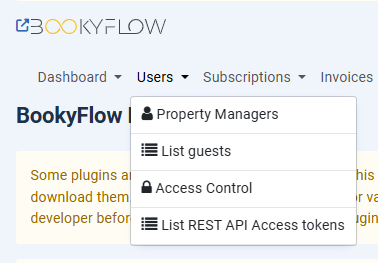
Access Control
TheAccess Control menu option is added by theAccess Control plugin, so you need to install that first.
The main goal of this plugin is to give you control over what menu options are visible in the frontend Bookyflow Main Menu.
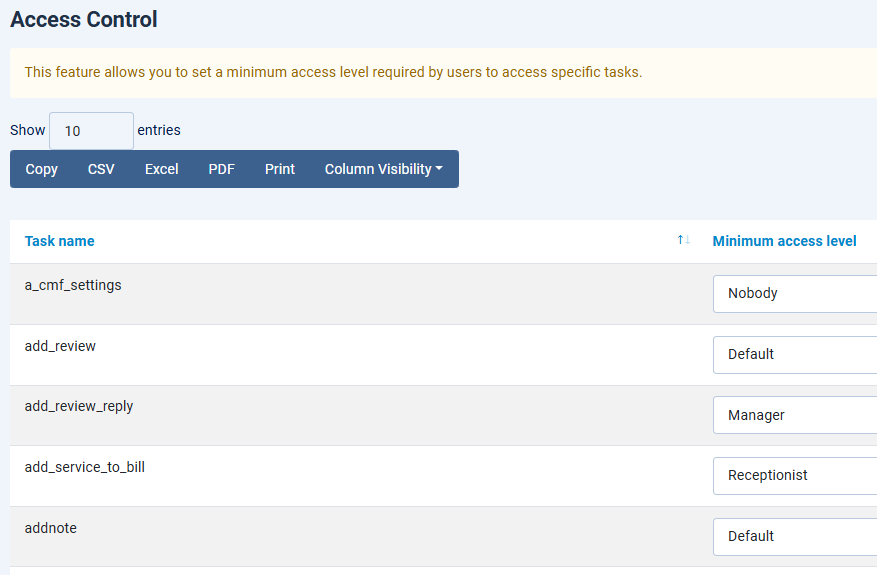
All pages in Bookyflow are “tasks”. The access control plugin allows you to define the minimum level of the user who can see that task.
The way you are most likely to use this is to enable or disable options in the Bookyflow Main Menu. If you visit theAccess Control page you will be able to watch a video tutorial that shows you how to use this feature.
Changing a dropdown in the access control page immediately changes that task’s level. There’s no need to save anything.
How do you know which tasks to change?
In the Bookyflow main menu, hover over the link to the menu item you want to disable. On a desktop machine the browser should show you the link underneath, so in theAccess Control video you can see the user wants to disable the View My Favourites menu option. The task for that is “muviewfavourites”. That’s the name of the task that gets set to Nobody in theAccess Control page.