Dashboard
Let’s start by describing the different menu options
The Dashboard menu option has several options.
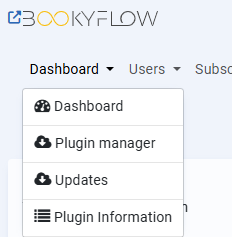
Dashboard
This takes the site administrator back to the main control panel/landing page of Bookyflow. This page is useful because it gives you an ‘at a glance’ view of your site including any warnings that you should attend to.
Plugin Manager
The plugin manager has a number of tasks. It’s main task is to provide you with a mechanism to install, update and remove plugins.

Simplification from Version 11.0.4: in previous versions of BookyFlow, the plugin manager needed to be installed as shown in hereabove picture. From BookyFlow version 11.0.4 and further, the plugin manager is included in the core of BookyFlow. Therefore there is no need to proceed to a separate installation ( and it does not appear anymore in the list of plugins, but you can find it in Third Party Plugins).

In the plugin manager menu ( Dashboard >> PluginManager) you will see the list of plugins that you can add to your site. Clicking the More Info button will give you a popup with a quick description of its functionality that you can use to decide if you should install it. Another simplification from Bookyflow version 11.0.4 : the plugins list shows to you which licence is needed for which plugin. Depending upon your licence you will see a Get a licence button or Install button. Color codes are according to licence level).
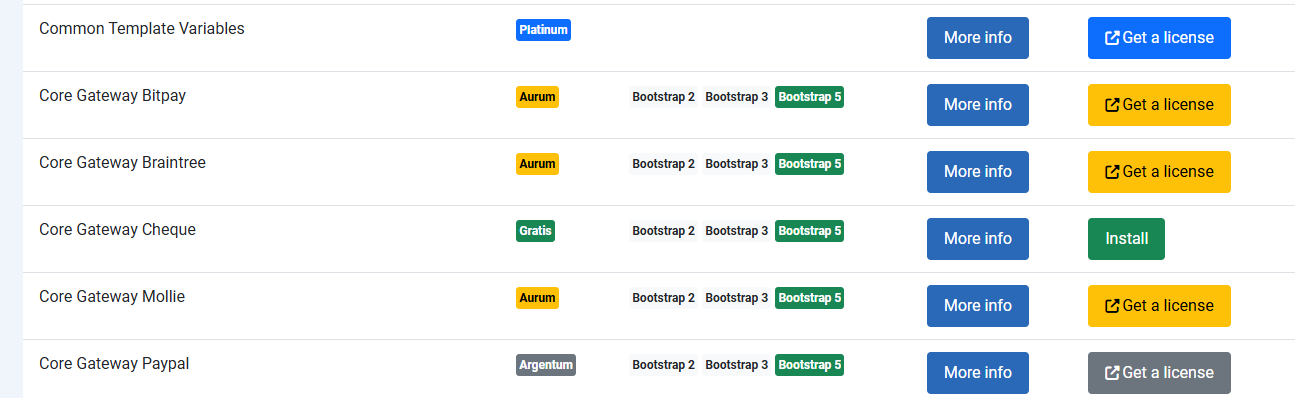
The Plugin Manager downloads plugins from the plugins server and installs them on your machine. A single click of the Install button is all you need to do to install it.
If a plugin or plugins on the plugins server is/are newer than the one on your machine then you can update them all with a single button click.
A lot of Bookyflow’ extra functionality is delivered as plugins. This makes it easier for BookyFlow to provide you with improvements without you having to go through a laborious update process. If the plugin manager prompts you to update plugins, you should do it.
Updates
The Updates feature allows you to update Bookyflow without having to go via the host CMS’s update feature. Generally, it can be considered a fallback feature in case the CMS’s update feature doesn’t work.
It was originally written before either WordPress or Joomla supported online updates of plugins, but today it supports a feature that still makes it useful.
When Bookyflow Core has new features, bug fixes and/or functionality added to it, those changes are sent to the Nightly Branch on the Bookyflow repository on Github. They will sit in this branch until a new version of Bookyflow is released. This gives users a chance to test those changes before releasing a formal version of Bookyflow.
In Site Configuration > Debugging tab there is an option to to set the site to either Production or Development mode.
99.9% of the time you should leave this set to Production, however if you set it to Development mode then when you use this Updates feature the installer will install the latest version of
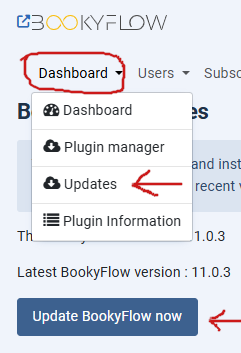
Bookyflow Core from the Nightly branch. This gives you the opportunity to experiment with new features, or to test bug fixes, before they’re released.
Plugin Information
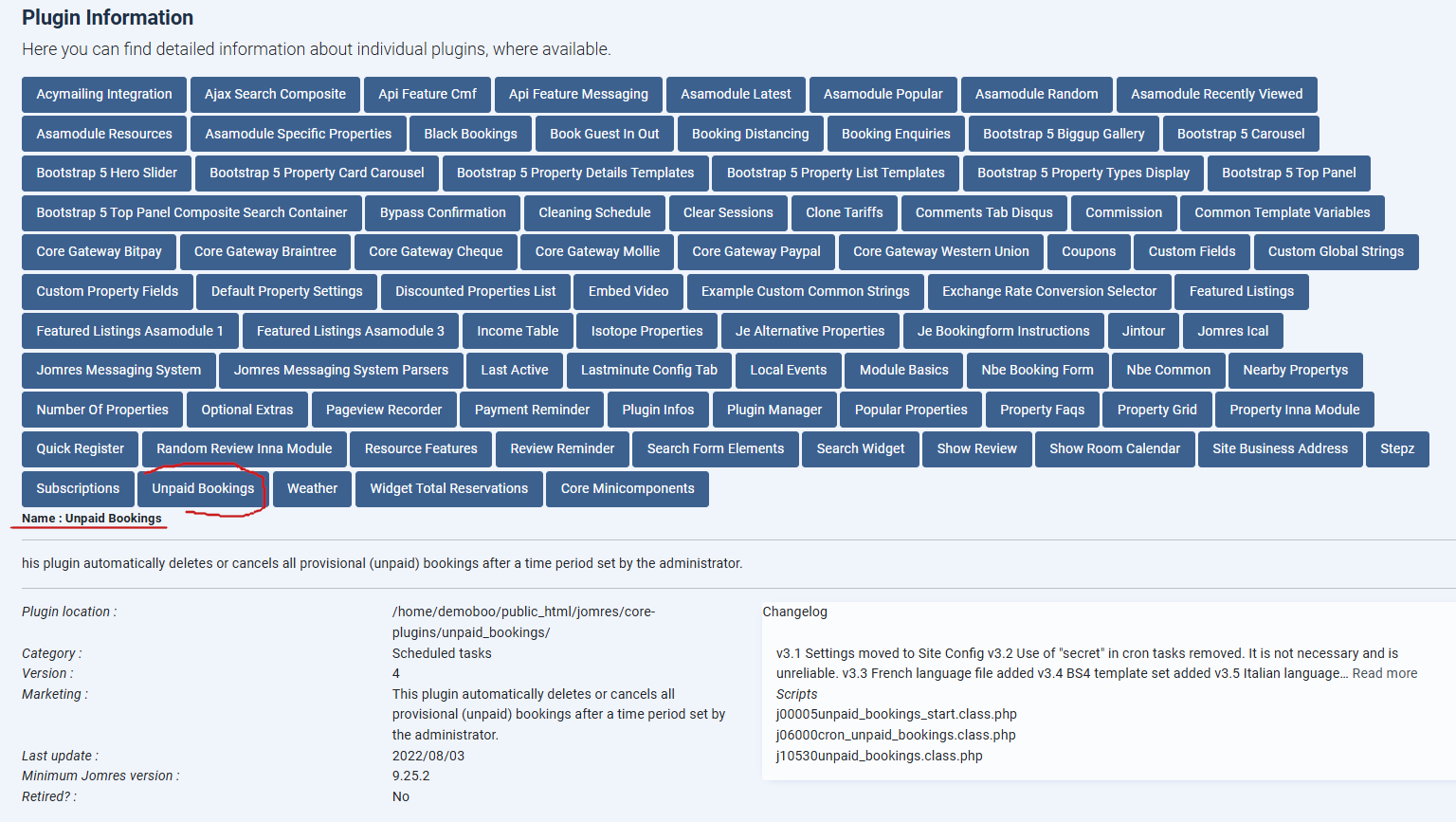
This menu option is delivered through a plugin called Plugin Infos. Its purpose is to collate information about currently installed plugins.
NB: PHP8 required to run this plugin. Do not install it if you are running a lower version of PHP.
The purpose of this plugin is to allow Bookyflow to provide documentation on currently installed plugins. It fills a gap between Shortcode documentation, and the information available in the Plugin Manager.
Many Bookyflow plugins are small programs that offer features and functionality that may not always be immediately apparent. Because the documentation is delivered along with the plugin itself, you can be sure that you’re getting the most up-to-date information available for that plugin.
As well as any screenshots and videos available, the plugin will also report detailed information about the plugin’s location and files.