Settings
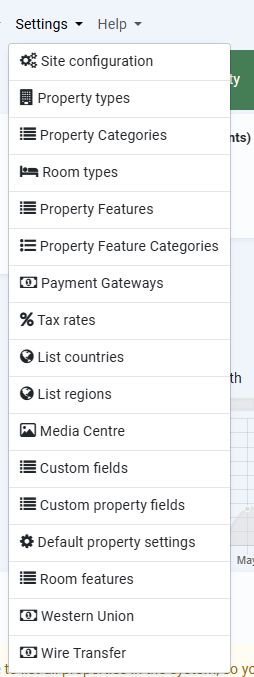
Settings are typically site related settings that are used during site setup and thereafter only occasionally.
Site Configuration
Site Configuration is made up of a lot of tabs with settings from various plugins.
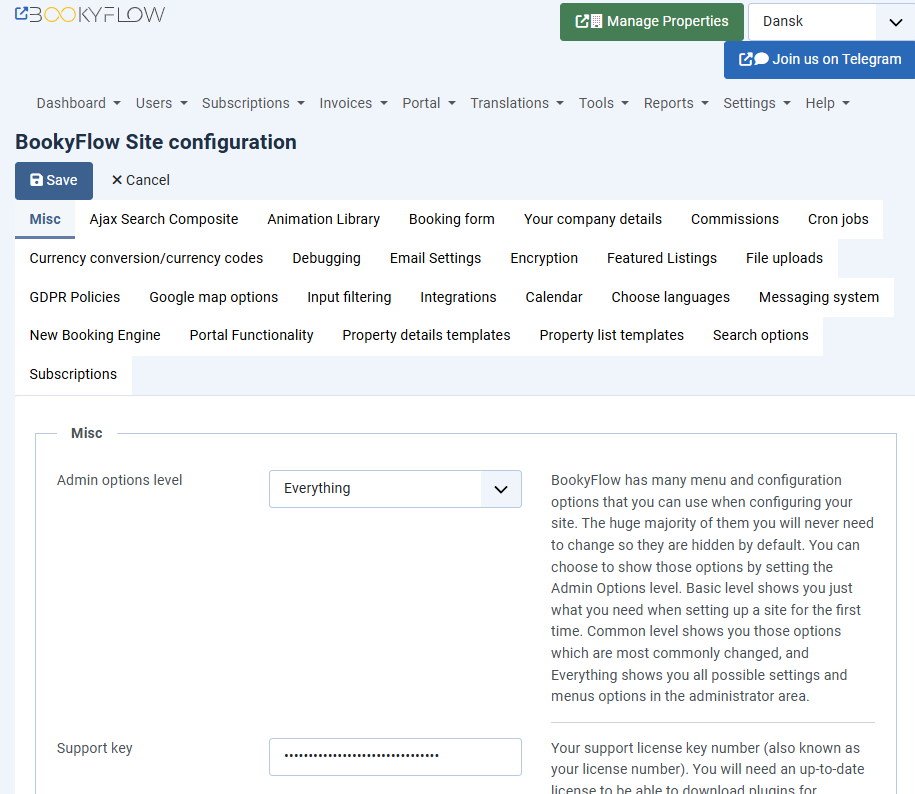
Many of the settings here are self-explanatory, and exhaustive commentary here would be simply repeating what you see on the page. For the sake of brevity, therefore, only those settings that deserve special attention or further explanation are addressed here .
It’s also necessary to remind you that this page is quite fluid and what you see in this document may not reflect what you see on your site. It depends on what plugins are installed as to whether or not your layout looks the same. In this example are included the most common plugins that are installed on a site. If there’s more to offer you will most likely see more information in the Plugin Information page. If you need further information do not hesitate to message us at https://tickets.bookyflow.net
Misc tab
This tab contains settings that either deserve to be front and centre in your attention, or they simply don’t have a more suitable place to go.
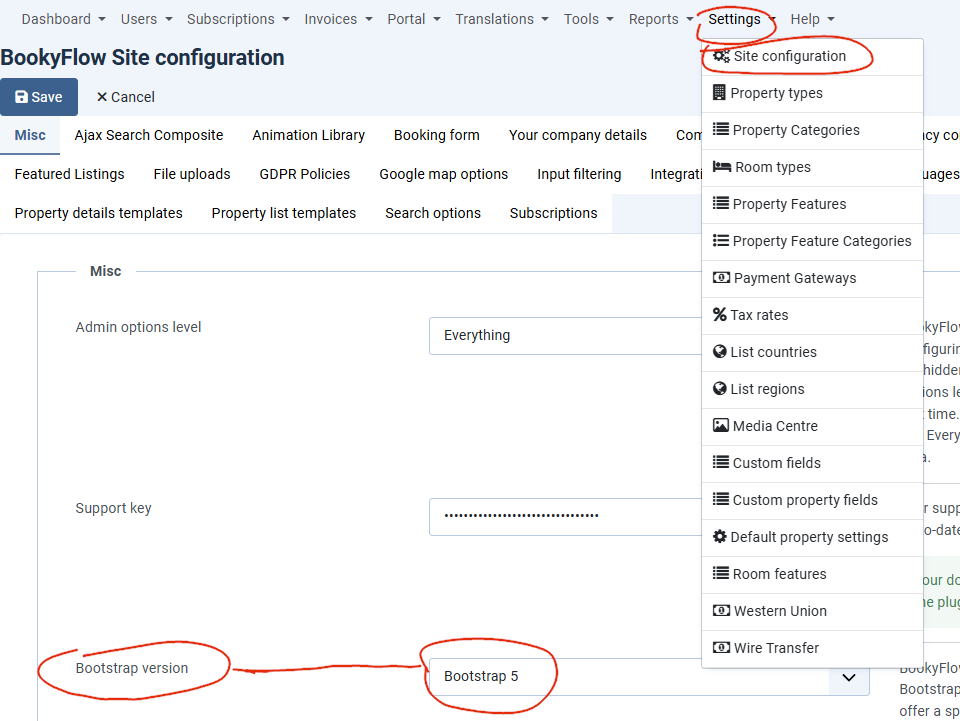
- Bootstrap version
If you have installed the Quickstarts then happily you can skip this section (at least until you decide you want to install a new theme/template).
If you are installing Bookyflow from scratch then it’s going to help you to read this section.
One of the most common support requests is from site administrators asking why a site doesn’t behave or look exactly as expected. Maybe there’s a javascript error in the page that’s preventing javascript from running, or the Bookyflow main menu is appearing as a column instead of horizontally across the page. At least 70% of the time it’s because the administrator has chosen the wrong Bootstrap version here.
It’s very important that you select the correct version of Bootstrap. This section is long winded but we feel it’s necessary (and maybe even interesting to you) to help you to understand. If you want to save some time, skip right to the “Which version should I set?” section.
NB : Terminology in Bookyflow might be a little confusing, and we will try to simplify it for you.
For frontend layout/colour scheming Joomla uses plugins called > Templates. WordPress has the same thing, except these plugins are called Themes. Think of Joomla or WordPress as the chassis (frame & engine) of your car, the Template/Theme is the body panels. When you choose a different theme for WordPress, you’re replacing the body panels. Bookyflow is neither a Theme or a Template. It’s a plugin that interacts with Joomla or WordPress (the chassis). To continue the car analogy, Bookyflow is the turbocharger in your car. The theme/template gives Bookyflow some CSS styles and Javascript components (like the air intake from the car body) that it can inherit from. If those styles or components are missing then some things may not work properly. Bookyflow itself has its own Template Set files, which are used to provide layout within Bookyflow itself. There are several different Bookyflow template file sets, which are each tailored to work with different versions of the Bootstrap framework. . WordPress users are often asking about my “Bookyflow theme”, which demonstrates how closely interlinked Themes and Plugins are in WordPress user’s minds. However, Bookyflow is not a theme. You can swap out the theme (body panels) and put in a new one, and still use Bookyflow.
Background
It is BookyFlow developpers convention to keep code and layout strictly separated, so that developpers can concentrate on getting the details right while you can concentrate on achieving the layout you want for your site. This layout is delivered in Bookyflow Template Set files. They are effectively HTML snippets with no PHP code in them.
Originally Bookyflow had a very basic template set that used some features from the Jquery UI framework for flashy things like striped tables and modal popups. It worked ok but every template/theme developer offered their own css frameworks and you’d often come across situations where Bookyflow wouldn’t work great with those templates/themes. It was incredibly frustrating because any solution found had to work with both those themes/templates and other sites that weren’t using those templates. Frankly, it was chaos.
In 2011 the Joomla project adopted the Bootstrap 2 css and javascript framework. This framework provides a consistent set of tools for achieving markup that’s both responsive and well documented. This was great for the Bookyflow project because Bootstrap allowed to present you with beautiful markup without needing to spend time on one area of the project when others deserve more attention. Those frustrations largely disappeared.
Bootstrap 3 was released about a year later and because of its better mobile handling it was quickly adopted by the community. To allow Bookyflow to display properly in Bootstrap 3 enabled sites, a new Bootstrap 3 template set was created for Bookyflow so that users with BS3 themes/templates could use Bookyflow.
In August of 2021 Joomla 4 was released and, you guessed it, a Bootstrap 5 template set was created for Bookyflow so that it would work on sites that offer Bootstrap 5.
What does this mean?
In practical terms, it means that Bookyflow' frontend and backend markup inherits styling from whichever version of Bootstrap that is currently included by the CMS. To make this a little bit more complicated, just which Bookyflow Template Set needs to be configured depends on which CMS Bookyflow is running on, and whether or not the user is in the administrator area, or the frontend.
Some of these decisions Bookyflow can make for itself, for example if the CMS is WordPress then in the administrator area Bookyflow will use its Bootstrap 2, admin area Template Set. If it’s Joomla 3, then again it’ll choose Bootstrap 2. If it is Joomla 4 or joomla 5 it will use its Bootstrap 5 admin Template Set.
The most important decision, which Template Set to use in the public facing pages, is one that it can’t make for itself. This is where you come in. There are some common scenarios to help you decide which setting to choose.
Which Bootstrap version should I set?
Short answer for both Joomla and WordPress :
If you’re stil using Leohtian, set this setting to Bootstrap 3, however it will not be compatible with joomla 4 and beyond. If you are using joomla 4,5 or 6 set it to Bootstrap 5. This setting is availalbe within the Misc tab of the Settings.
Long answer :
The first question is, which CMS are you using?
Joomla
If you’re still running Joomla 3 with the default template that comes with Joomla, then you should set this setting to Bootstrap 2.
If you’re running Joomla 3 with a third party template installed then you need to know which version of Bootstrap your theme offers. The easiest way to do this is to view your home page’s source, and click on the bootstrap.css file. In the top of the file it will usually tell you which Bootstrap version it is.
If it’s Bootstrap 4, the joomla Cassiopeia template will do the job with some adaptation on css. There isn’t a Bootstrap 4 template set for Bookyflow. However BS4 and BS5 are quite similar and Bookyflow might work if you tell it to use its BS5 with your template, or better use Cassiopeia. Of course some commercial templates will do the job as well.
Template Set.
If you’re running Joomla 4 then tell Bookyflow to use its Bootstrap 5 template set.
WordPress
If you’re running WordPress then you have several options.
You can choose the “No bootstrap in theme option”. If you do that then Bookyflow will import Bootstrap css and javascript files from CDNs for it to inherit styling from, however there are some caveats. Testing this setting against several default WordPress themes, the Twenty Twenty and Twenty Twenty Two themes, shows that Bookyflow works ok in the first, but in the Twenty Twenty Two theme it doesn’t work so well. It may work with other themes but they have not been tested as such. If in doubt, use a Bootstrap based theme, there are many available including the old Jomres Leohtian and Sunbearu themes if you do have them.
You could, in theory, create a template override set (see the Site Designers Guide) and completely rewrite the templates to use no Bootstrap markup whatsoever, but why complicate your task, unless absolutely necessary, as already templates exists.
If your theme offers Bootstrap but you’re not sure which one, check the page source and click on the bootstrap.css file. In the top of the file it will usually tell you which Bootstrap version it is. If it’s Bootstrap 4, you’re out of luck as there isn’t a Bootstrap 4 template set for Bookyflow, however BS4 and BS5 are quite similar and Bookyflow might work if you tell it to use its BS5 Template Set.
- Prioritise site-wide labels?
Leave this setting to its default of No.
- Global editing mode?
Leave this setting to its default of No.
-
Load Bookyflow jQuery UI library?
-
Load Bookyflow jQuery UI CSS library?
-
Jquery theme
Leave these settings alone. They are left in-situ for users on older installations of Bookyflow but should not be changed on newer versions.
- Navigation bar location
If you are using Leohtian or Sunbearu it’s best to leave these settings to the default.
- Delete all Bookyflow data when uninstalling?
Some users choose to uninstall and re-install Bookyflow when updating. This is an older convention which is rarely used nowadays; however it can be used if you are developing software and want to start with a clean sweep. As a result, Bookyflow does not automatically remove Bookyflow tables when updating. Change this setting if you really want to be destructive and remove all of Bookyflow from your server.
- Offer Random Emails
To remain compatible with the GDPR Bookyflow creates a new user in the CMS when unregistered users make bookings. This new user is associated with their email address used during the booking.
When property managers edit a guest all records against that email address for that property are updated to reflect these new details. This also goes for when a manager creates a booking on the guest’s behalf at the front desk.
Unfortunately it’s many manager’s habits to re-use email addresses when making bookings for guests. Perhaps the guest doesn’t have one (rare today, but it can still happen) or for privacy reasons they don’t feel comfortable sharing it. If the manager re-uses an email address then they can overwrite all previous records for other guests of that property that use that same email address.
To get you around this potentially unhappy situation you can configure your installation to offer random email addresses in the modal popup that appears in the manager’s dashboard and timeline pages.
It may seem ugly and overly complicated, but it’s the most elegant solution available for a multi-vendor booking engine.
AJAX Search composite
Read this plugin’s documentation in the Plugin Information page.
Booking form
- Show Booking form in property details page?
Ignore this setting, it is left in-situ for older sites. Newer installations of Bookyflow do not support it. If you really want the booking form (either the old form or the new booking engine form) to show in the property details page there is a feature described in the Site Designer's guide that you can use to include script content (including shortcodes) in other Bookyflow template files.
- Show tax output in the booking form totals summary?
Many countries insist that complete tax information be shown during the booking process.
Your company details
Properties (hotels, villas etc) should be considered distinct from your site business. When used as a portal, you are providing a Platform service to property managers. As a result there are scenarios where you want to output your site’s contact details instead of a property’s contact details. This page is where you do that.
For example, in the Bootstrap 5 template set, the default Property Details page includes a sidebar with the site’s contact details where the guest can contact you, the platform/site manager instead of the property manager. Perhaps the property manager is unavailable? This gives you the option to be a fall-back contact for the guest.
Cron jobs
Bookyflow Cron jobs are scheduled tasks that are run behind the scenes. When a visitor views a page Bookyflow triggers what is known as an asynchronous task.
These are separate visits to Bookyflow that purposely trigger checking for scheduled jobs, meaning that the user’s page load times are not affected by some background task taking time to run.
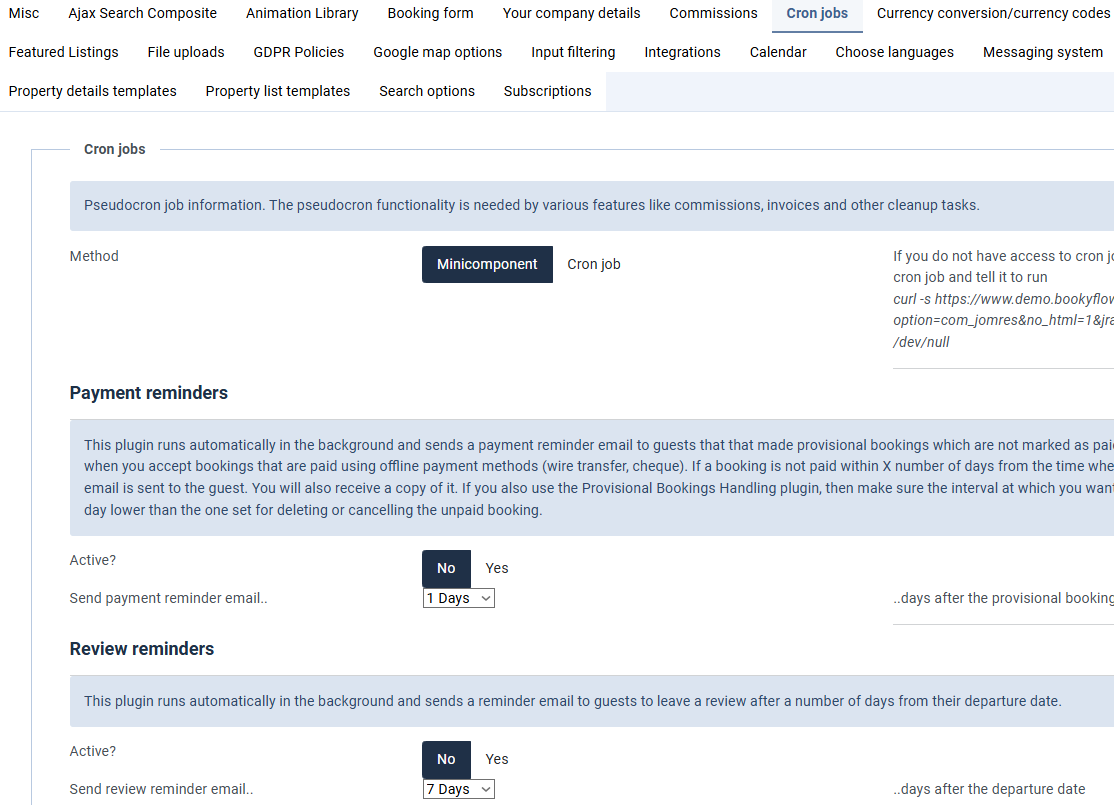
There are two ways that these tasks can be triggered, either as a minicomponent (where Bookyflow calls itself) or where you can configure what are called Cron jobs that are run at a specific interval.
On this page you will see a "Method" setting, which determines how the cron process is triggered. If it's left to the default setting of Minicomponent, then whenever Bookyflow itself is viewed in the CMS, then a background task is fired to asynchronously call the Bookyflow Cron functionality. This ensures that the actual Bookyflow task being called is not slowed down by the background tasks that are run, however it means that if your Bookyflow page isn't called for some time, for example an hour, then tasks that need to be performed more often, say every quarter hour, are not run at that time.
To resolve that, you can set up cron jobs in your web server’s control panel to either call the Bookyflow Cron functionality, or you can call individual tasks as cron jobs. An example of how to setup a cron task to call Bookyflow is given next to the setting.
On this tab, if you scroll down, you will see the jobs from the database.
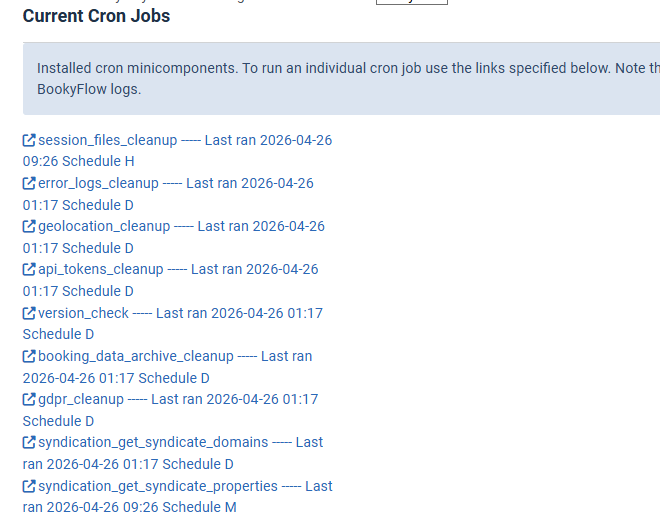
Each of these links are a link to a scheduled task. If you click on a link your browser will open up a new, blank tab. These cron tasks don’t usually produce output.
When you click on a link here you are manually running one of those tasks so if you feel that a scheduled job isn’t working as expected you can click on its link and see if it runs ok or if it outputs any errors.
How to run tasks at different time intervals
A link to the review reminder task would be similar to
http://www.domain.com/index.php?option=com_bookyflow&no_html=1&jrajax=1&Itemid=0&lang=en&task=cron_review_reminder
If you need certain tasks to be run more often, for example pulling an ical .ics file from a remote site, you can then setup individual cron jobs to call specific tasks like this :
curl -s http://www.domain.com/index.php?option=com_bookyflow&no_html=1&jrajax=1&Itemid=0&lang=en&task=cron_ical_process_remote_feeds > /dev/null
Currency conversion
“Use conversion functionality” You must set this option to Yes and fill your OpenExchangeRates API key in the Integrations tab to use the currency selection functionality of Bookyflow.
Even if your properties all use the same currency your guests may not. Bookyflow can output prices in both the property’s currency as well as their own. This helps them to understand the price, as well as ensuring that the property’s “real” price is correctly displayed.
Debugging
This tab contains copious notes, if you have any questions please do contact us at https://tickets.bookyflow.net
If you are not a Developer, we strongly advise you to leave “Production or Development?”set to Production.
Email Settings
By default Bookyflow will use the host CMS’s email settings. Most of the time you do not need to change these settings.
Encryption
Never, everdelete the encryption file stored in the root of your Bookyflow installation. It is called encryption_key.class.php and it is critical for decrypting guest and manager PII (Personally Identifiable Information).
On this page you can change the path to the location of the file. Ideally you would store it somewhere outside your web root.
Ideally once you have installed Bookyflow you would download this encryption key file and store it in a secure area off the site. That way, should anything ever go wrong with your site you’ll still be able to decrypt your guest details later.
File Uploads
When an image is uploaded through the Media Centre, three copies of the file are made. There are two reasons for this :
1. Security. It is possible to upload dangerous code in files purporting to be images. The process of resizing removes any potentially bad code from images.
2. Creating three different file sizes means that you can opt to show smaller or larger images depending on the number of images displayed in certain places.
The default upload file sizes are very conserative. Feel free to change the settings if you want images uploaded with more detail.
GDPR policies
This tab contains copious notes, if you have any questions please do contact us at https://tickets.bookyflow.net
Google map options
With the Extended Maps plugin installed there are two different sets of settings here. They are generally not shared with each other.
The first set of settings affect maps shown on property details pages and show_property_map shortcodes, the second affects extended_maps shortcodes.
Input Filtering
Bookyflow expects to be used as a portal, therefore property managers are not trusted users. As a result, a default installation of Bookyflow sets the input filtering level to Strong. Managers can still save code that looks like html, but it uses the Markdown format https://en.wikipedia.org/wiki/Markdown
You should not allow untrusted users to save html in your database, it is a security risk.
Integrations
This tab is where you storeAPI keys for various services.
If you’ve saved anAPI key but a feature is not working as expected, first use the Firewall test page in the Tools menu to confirm that your server is able to talk to the remote service.
Calendar
This tab allows you to configure how the default calendar in the old booking engine appears.
Choose Languages
You can limit the languages that appear in the language dropdown that appears in the administrator area and the translations page in this tab. If your site doesn’t have a language installed, you should ensure that it’s not selected in this page.
Portal functionality
This tab contains settings that are typically important on portals. Most of the options are self-explanatory.
If you are just setting up your site you may want to set the “Set reviews to test mode?” option to Yes. This allows property managers to add reviews themselves.
Property Details templates
This option comes from the Property Details templates plugin. You have the option here to select the default Property Details template that is shown when a visitor views a property. You also have the option to allow property managers to set their own default property details page choices. The Quickstarts have menu options that can show different layouts for the same property, however those should not be used, they are for demonstration purposes. Instead use the settings here to decide which layouts to use.
If your Bookyflow installation is set to Single Property Mode (See the portals tab) this setting will have no effect because site visitors/guests are automatically redirected to the property’s booking form.
Property List templates
This option comes from the Property List templates plugin. You have the option here to select the default Property List > Photo view and List view templates.
Searches result in property lists. Guests, when presented with these results have the option to view the results as either a list, or sets of photos. These results can either be paged format or live scrolling.
If your Bookyflow installation is set to Single Property Mode (see the portals tab) then this setting will have no effect because there’s only one property to be shown, searches instead are redirected to the booking form page.
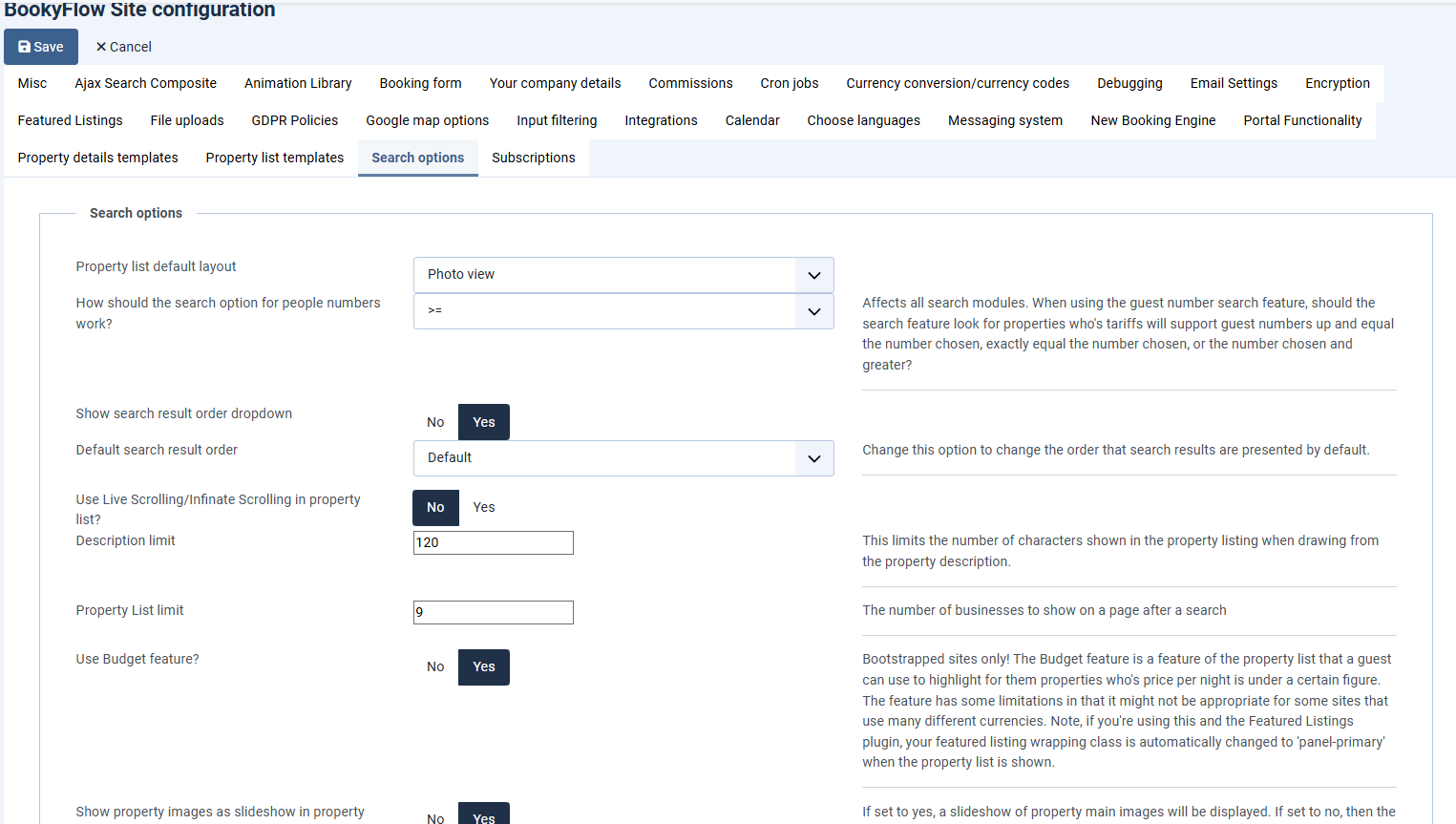
Search options
This tab contains copious notes, if you have any questions please do contact us at https://tickets.bookyflow.net
Property Types
Most properties in Bookyflow have rooms.
You access to it via the Settings Menu.
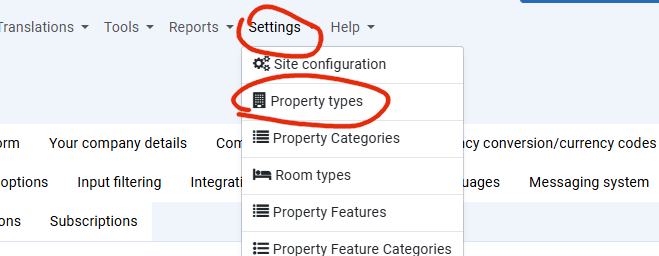
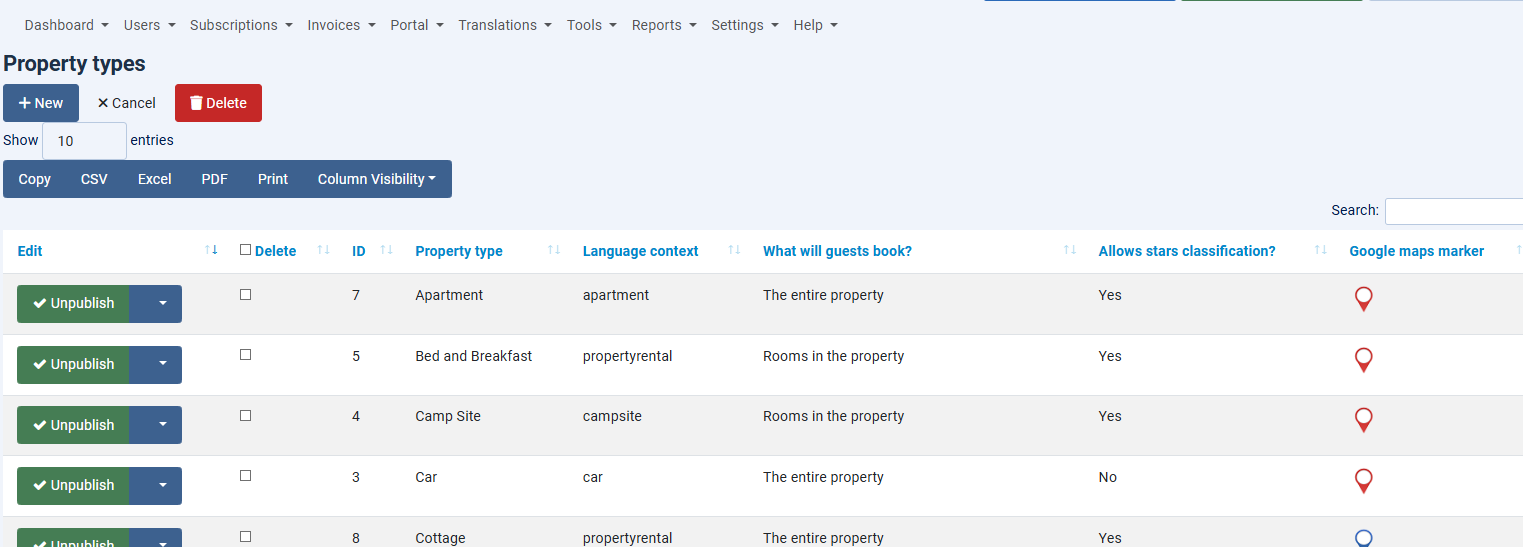
This allows guests to book individual rooms in hotels, it also allows property managers to upload descriptions for individual rooms, if they want to offer guests the opportunity to book specific rooms.
These properties are known as MRPs (Multi-room properties). The booking process is to book one or more rooms in a property.
Apartments, villas, cottages etc don’t allow sharing of bookings. Once the property is booked, it is booked for that guest. Internally Bookyflow still has one room, which is invisible to property managers. These properties are known as SPRs (Single Room Properties).
Property Categories
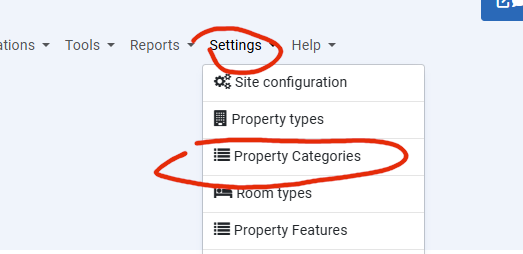
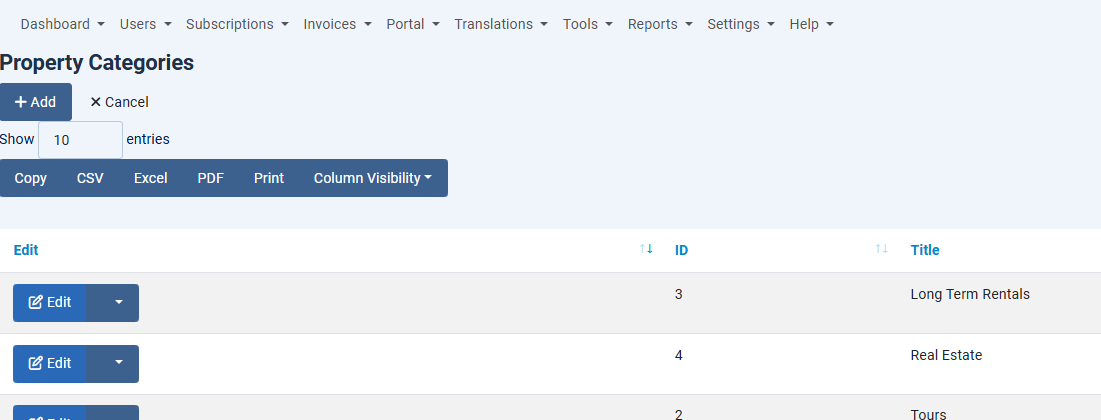
Search forms can be configured to allow searching by property category.
Room types
Because Room types is a common search item, room types are usually configured by Site Administrators. It is possible to allow property managers to create room types, but it’s not recommended. There are scenarios where you may want to allow managers to create room types (Site Configuration > Misc tab), but they are highly specific. In most cases, you should manage creating room types.
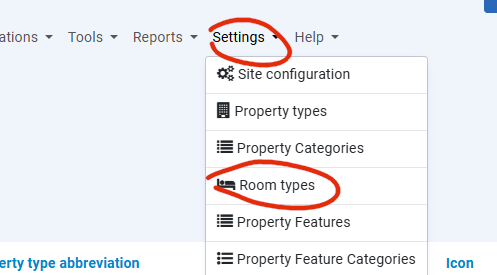
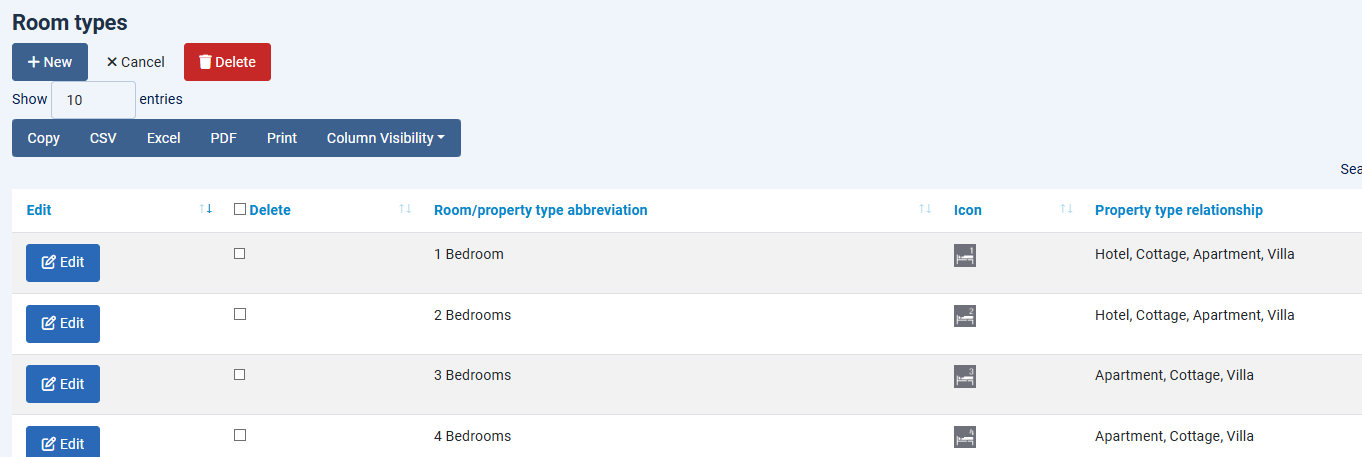
Upload icons for the room types through theAdmin area > Bookyflow > Settings > Media Centre page.
Property Features
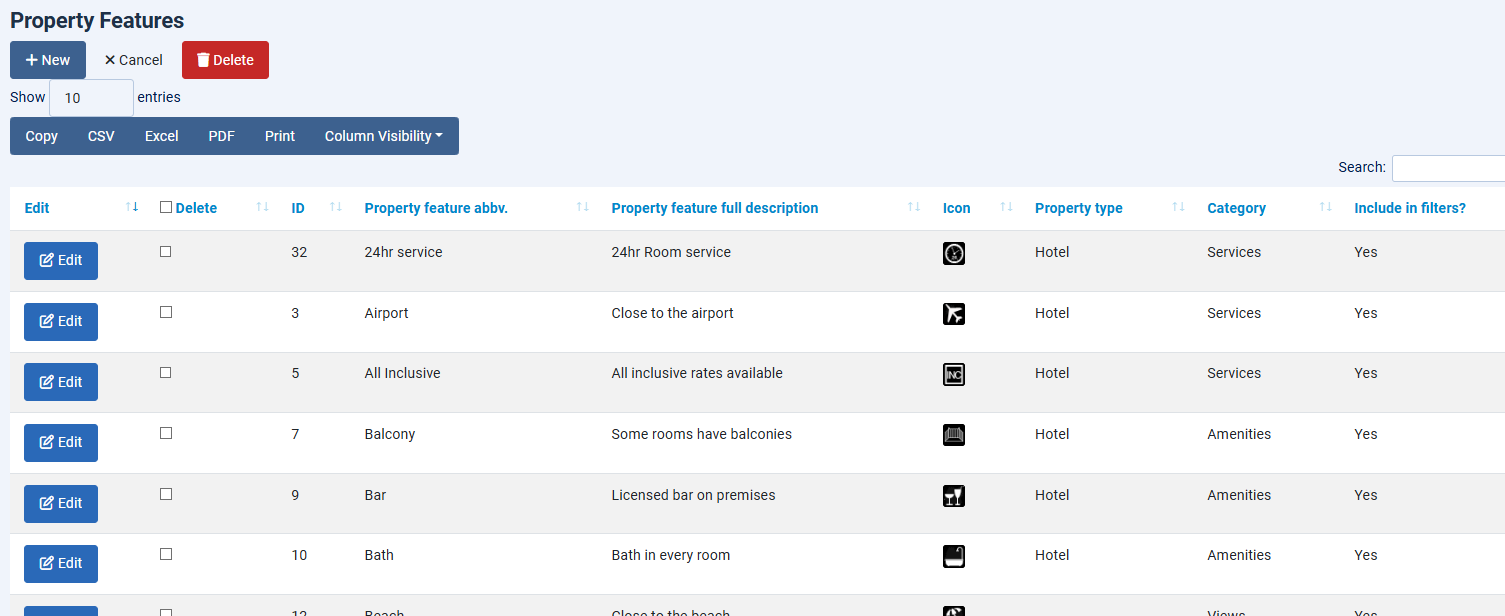
Property features can be searched for via the search functionality in Bookyflow.
The are items that are specific to an individual property, such as “Sea Views” or “Close to the airport”.
Once you have created a property feature you can upload images for it through theAdmin area > Bookyflow > Settings > Media Centre page.
You can associate property features with property feature categories, and you can also configure what property types the features can be shown to. It’s highly unlikely that a camp site will offer 24 hour room service, so this allows you to limit which features a property can be shown in the Property Details page.
Property Feature Categories
See the screenshot above. Property Feature Categories allow you to assign property features to categories for display.
Payment Gateways
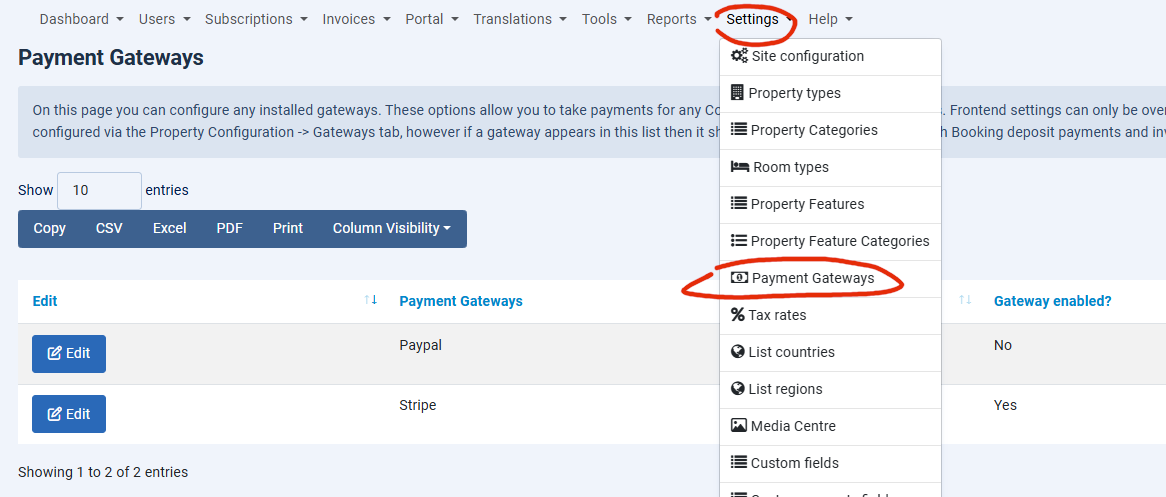
Payment gateways are usually configured by Property Managers in the frontend of your website (Property Configuration > Payment gateways tab) so even if you have a payment gateway installed, it may not appear in this page.
Tax Rates
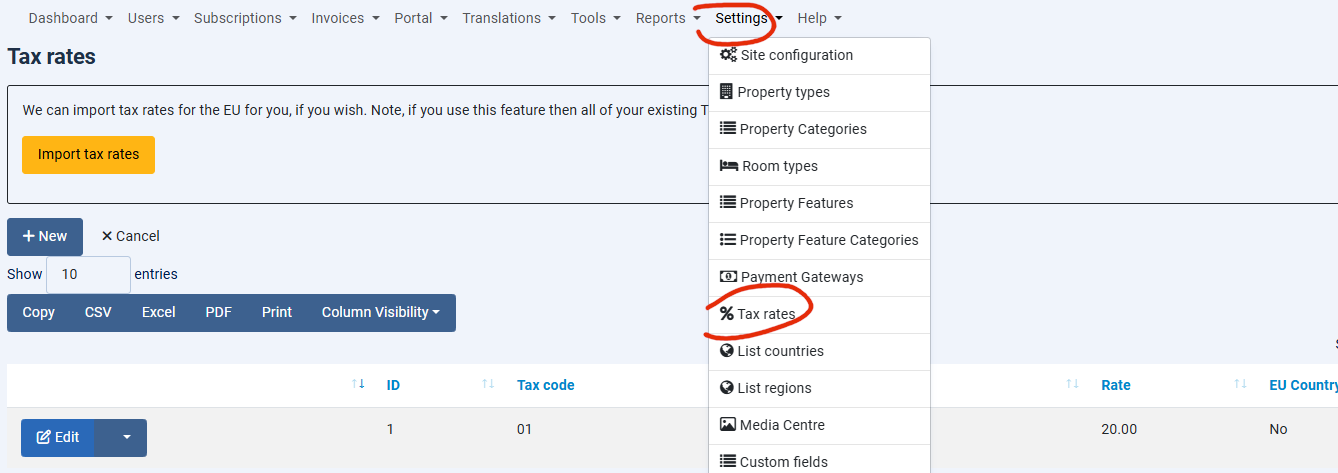
Here you can configure the tax rates that are displayed in the Property Configuration page. For EU taxes, there is an import function to load taxes rates by country.
List Countries
You can see the countries in the database of your site. Unless you have a specific need, it is strongly recommend that you don’t delete any countries from this site. Translate country names in the Translate Locales feature.
List Regions
You can see the regions in the database of your site. Unless you have a specific need, it is strongly recommend that you don’t delete any regions from this site. Translate region names in the Translate Locales feature.