Translations
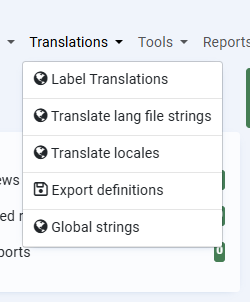
Translation functionality in Bookyflow has changed a lot over the years.
Long before Joomla even had translation functionality out of the box users were able to use Bookyflow in multilingual mode, it even had it’s own language switcher.
Those days are long gone. Nowadays you install a language plugin (WordPress) or enable the Language Filter (Joomla) and Bookyflow will adapt to whatever the current language is.
There remains, however, some things that you will need to do yourself, primarily renaming labels of individual items. The process to do this is very simple.
On each of the following pages change the language dropdown(top right of the page) to your target language, click on the thing you want to translate and it will open a popup. Put your new translation in the popup’s input field and click the checkbox.
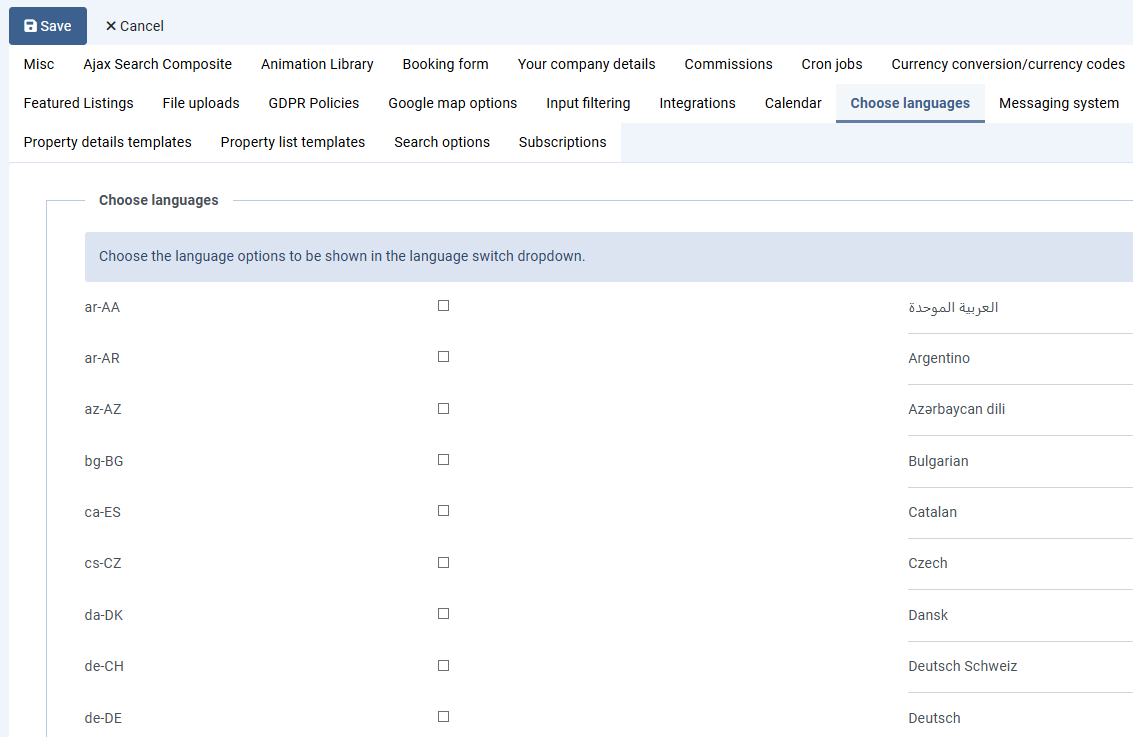
In Site Configuration you can choose which languages to show in the dropdown. If none are selected then all languages will be offered in the dropdown, however you will still need to configure your CMS’s language plugin to offer that language on your site. Any translations saved for languages not installed are simply never used, but they’ll still be there in case you ever offer that language in the future.
All translations are saved to the xxx_bookyflow_custom_text table, so they’re all update safe, there’s no need to edit language files and re-upload them after an update.
Label translations
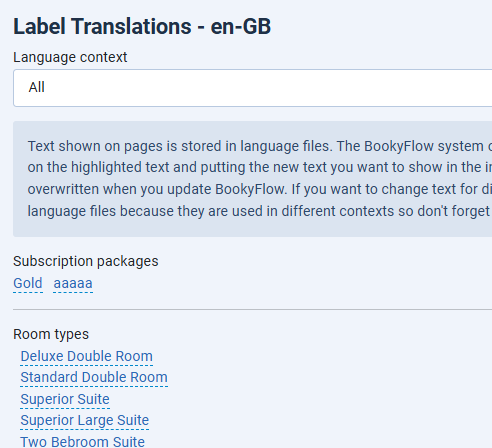
The Label translations page allows you to translate items that you created in the administrator area. Typically these would be items like room type names, names of property features, and property types.
Translate Lang File Strings
As the site administrator this is the translation feature you are most likely to use. It works the same as the previous Label Translations feature but instead it’s used to change language file definitions. You don’t need to edit language files because these changes are saved to the database.
The text which is capitalised is the definition taken from the language file. You don’t really need to know it, but it may be useful.
Translate Locales
By default the Site Configuration > Misc tab > “Region names are translatable” option is set to No.
When this option is set to No then only country names can be translated. When the option is set to Yes, then you can also translate region names, however be aware that there are almost 4,000 regions stored in the Regions table so this might take you some time. By default this option is set to No because translating region names can be very memory hungry.
Export Definitions
Bookyflow by default comes with 3 language files for each language. Individual plugins each have their own language files.
On this page, all of the language definitions, including the replacements which are stored in the database, are exported into a document that you can use to transfer definitions to a new website if you wish.