Site Manager's Guide
A Site Manager is somebody who is responsible for configuring and maintaining a Bookyflow installation.
This section of the guide is not intended for property managers.
All site management is performed via the Administrator area of your CMS.
There is a separate document called Bookyflow Site Designer's and Developer's Guide which covers subjects such as setting up search modules, creating overrides and other more developer specific details. You should read this Site Manager's document first, at least the two sections discussed in the Introduction, before reading the Designer's Guide.
Notes Before You Start
Items in menus may be different in your Bookyflow installation. These menus are dynamically generated and newly added plugins can add or remove menu options so don't be surprised if your options or configuration tabs are different to the ones in these screenshots. If you see something in your site that doesn't appear in this document, first install the Plugin Infos plugin and check there for extra information. If you still don't understand the purpose of the menu option, please do raise a support ticket at https://tickets.bookyflow.net
Bookyflow works on both Joomla and Wordpress and the User Interface is the same in the two CMSs. The screenshots here will be taken from BookyFlow/Joomla 5, but some of them from BookyFlow/Joomla4 may remain for a moment. If you're running an older version of Joomla, or you're using Bookyflow in WordPress, the UI may have a slightly different layout and/or colour schemes. Don't worry, normal differences if you have got an up-to-date installation of Bookyflow, it will just look a little different.
In Administrator > Bookyflow > Settings > Site Configuration > Misc tab there is an option called "Admin options level". This option allows to select which group of menu will be visible to admin. Before working through this document it is advised that you change that option to Everything. You can change at anytime that option if some menus are not usefull to you.
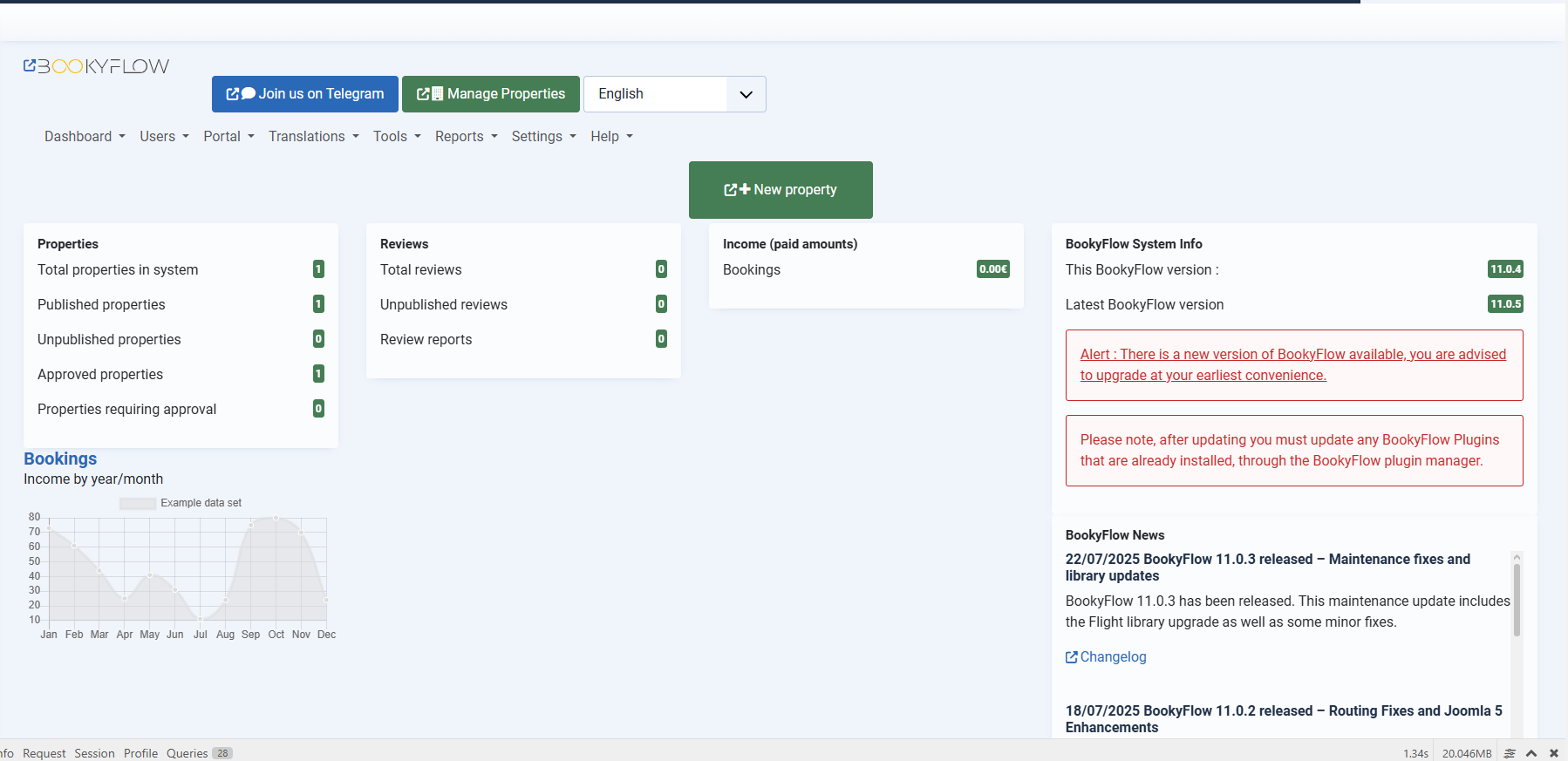
If you are running Joomla, in Global Configuration please ensure that "Website Time Zone" is set to UTC. In WordPress you can change this option in Admin > Settings > General > Timezone