Channel Management
Channel Management is a complicated business. If you want a simple process you can use the iCal plugin instead.
iCal files can import new bookings from a remote service, but they can’t manage cancelled bookings, pricing or other setting changes. Channel Management can be a solution if you need to make changes that are transferred across to different OTAs, however it’s up to you to decide how you want to do it.
Choose channel management if just one or two people are managing properties. If, on the other hand you’re offering a booking platform to non-technical users then allowing them to import bookings via iCal files is simpler and less of a barrier to them using your service.
This section contains a mix of admin area screenshots, and property manager page screenshots.
Channel Management, where property settings sharing, not just availability, is done through a third party Channel Management service. In Bookyflow that service is called Beds24. To use them you will need an account with them.
There are two different methods of sharing properties with Beds24. Which method you choose depends on the properties you have on your site. Refer to the Terminology section to understand the difference between MRP and SRP.
All SRPs
If your properties are all SRPs, then you should use this method :
https://wiki.beds24.com/index.php?title=Bookyflow&mobileaction=toggle_view_desktop
All MRPs or a mix of SRPs and MRPs
If you have MRPs, properties where you rent out the rooms in the property, and not the entire property then please read on.
Beds24v2 plugin
Channel Management is used to allow your properties to share their bookings with Online Travel Agencies such as booking.com, expedia and others.
To share bookings between Bookyflow and Beds24 you must first link properties. This is done through the Beds24v2 plugin that can be installed through the Bookyflow Plugin Manager. Once properties are linked then bookings are automatically imported and exported as they are created in Bookyflow and the OTAs.
Note : Your Bookyflow installation should be accessible through a fully qualified domain name (e.g. not "localhost"), and your Bookyflow menu option should NOT be password protected. If either of these two requirements are not met then Beds24 will not be able to send you booking notifications.
Installation
Install the plugin thru the Bookyflow Plugin Manager, the same way as you would any other Bookyflow plugin.

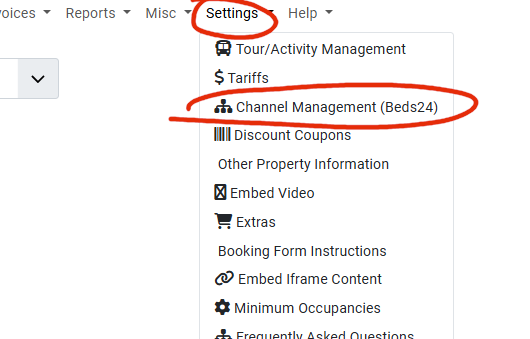
When the plugin is first installed, you will then see  within Front end Settings menu:
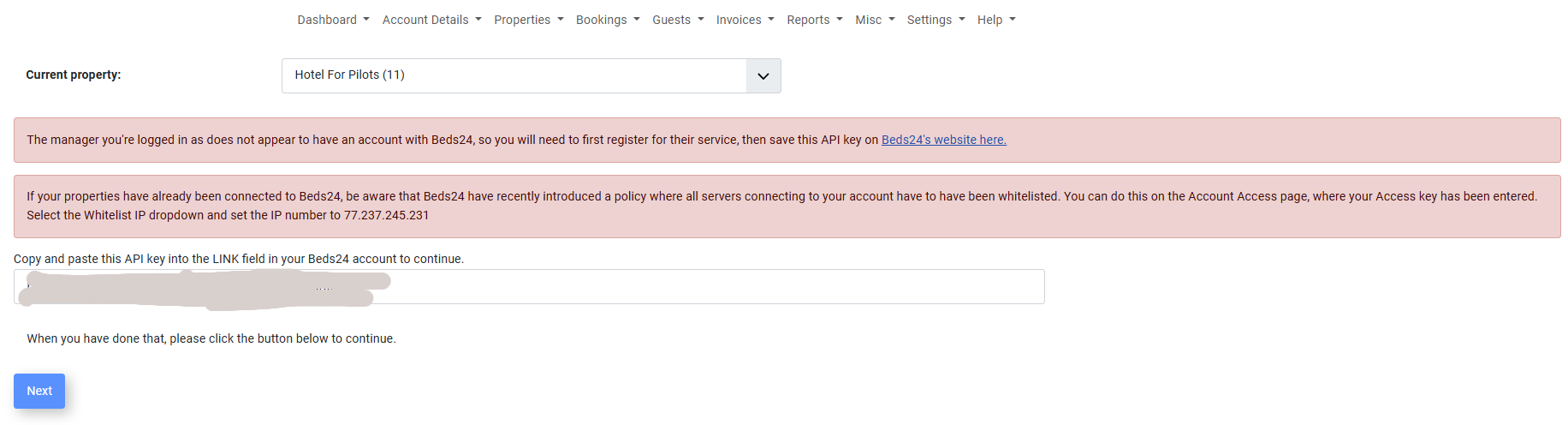
and see this message when clicking on it :
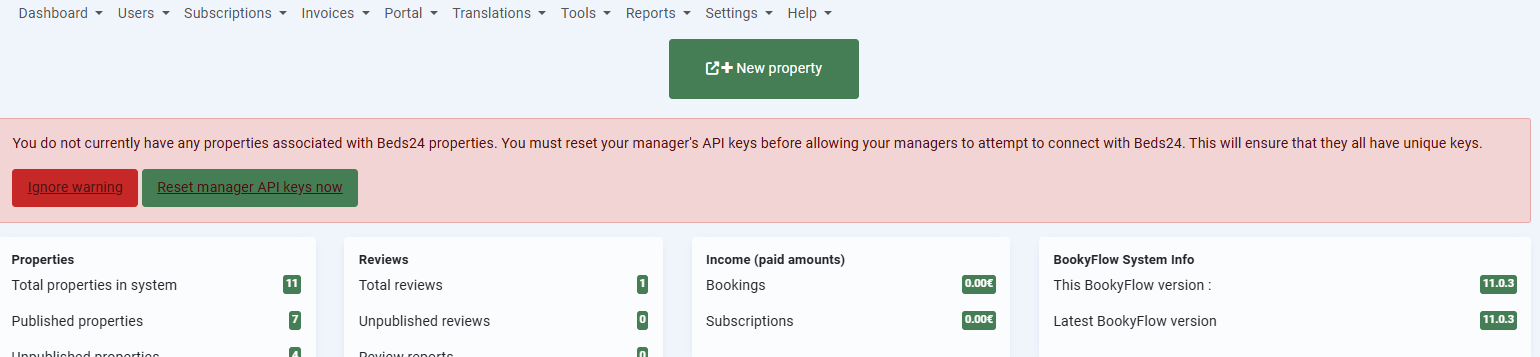
and aslo this message in Bokkyflow backend admin:
Connecting/API Keys
When properties are added to Beds24, the Bookyflow API key is stored in Beds24 so that the manager can only manage those properties that they have created.
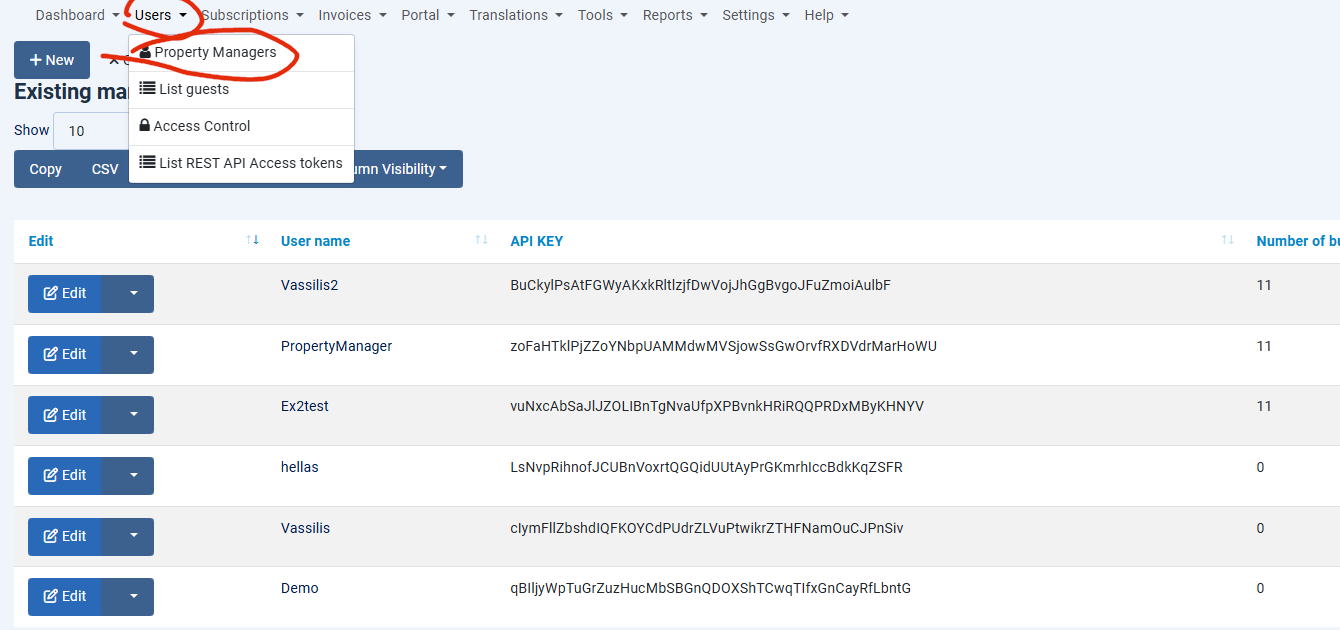
As you can see in the above screenshot, there are several manager with several properties currently in Bookyflow.
In the following steps you will see how to connect one of property of one of the managers with Beds24 ( the Bookyflow property will be exported to Beds24 ) and also one property in their Beds24 account, which will be imported into Bookyflow.
If you are running a platform where you are listing your own properties and you will use just the one property manager to manage all of them, then you can set a master API key in the administrator area for communicating with Beds24.
If, on the other hand, you have multiple property managers who will all be using their own Beds24 accounts then you cannot use a master API key.
Instead the individual property managers will need to manage their API connections via the frontend Channel Management menu option.
Using a master API key
In the Administrator area > Bookyflow > Settings > Integrations there is an option to save and use a master key that allows all integrations with Beds24 to be performed through one Beds24 user.

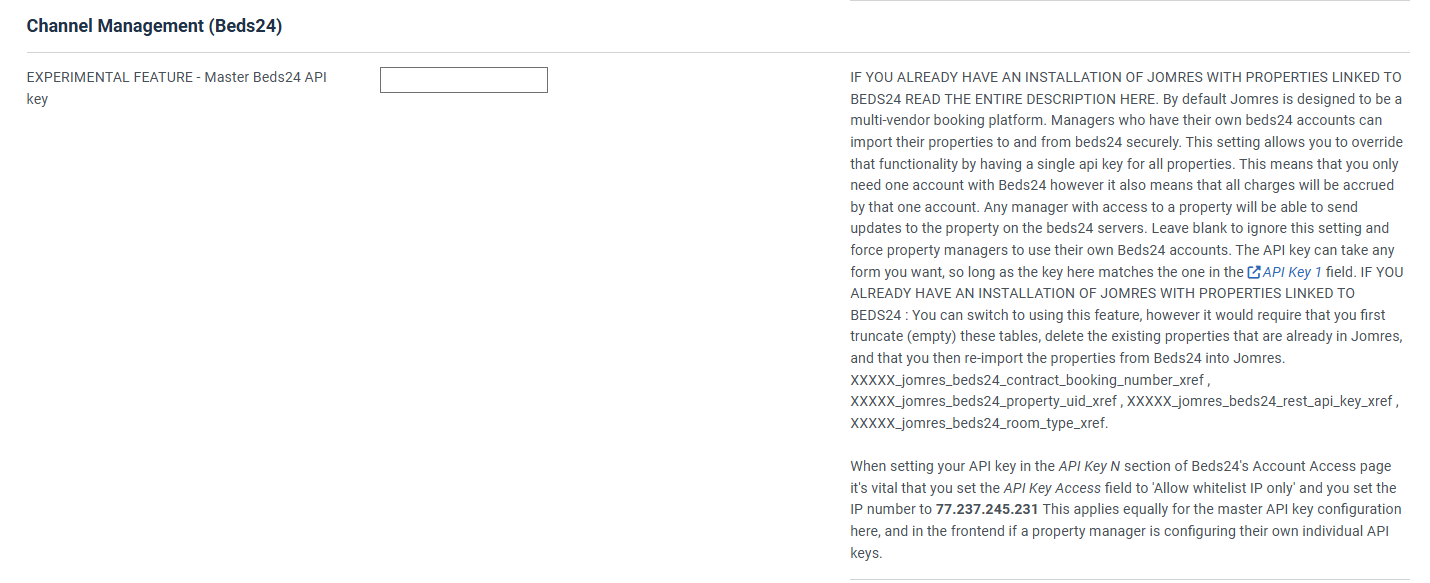
The API key can take any form you want, so long as the key here matches the one in the field.
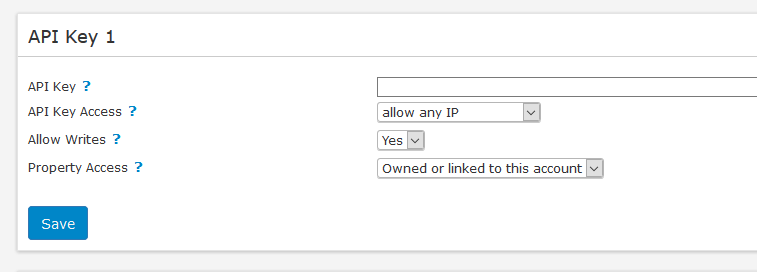
Also, you must whitelist your server’s IP number in the API key 1 section on Beds24.
Using individual managerAPI keys
Log into the frontend as the property manager, you will see the "Channel Management (Beds24)" option in the settings menu.
When you click on the menu option, because this property manager has not previously been linked with Beds24, you will see this message:
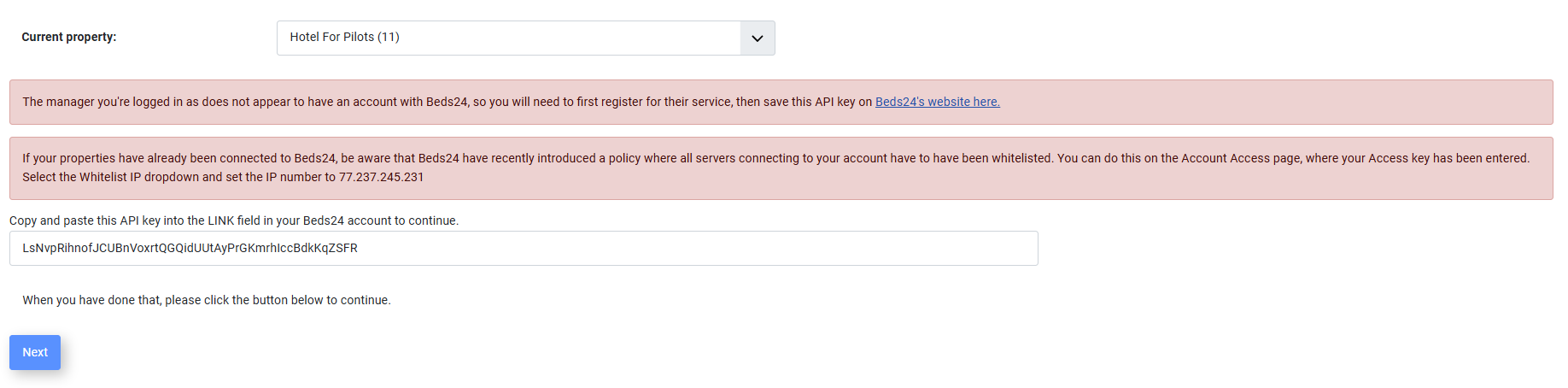
First COPY the API key into your clipboard, then click on the blue highlighted text that says "Beds24's website here". This will open up a new tab in your browser and you will be taken to the Beds24 Account Password page in their control panel.
Scroll down until you see theAPI Key 1 field :
Paste in the key from the clipboard, then click Save. You can now close this tab and return to the previous one. Also, you must whitelist your server’s IP number.
Click the Next button
Beds24 property linking
The next page is the page you will normally see when you visit the Channel Management (Beds24) page. It allows you to link any properties you may have in Bookyflow with Existing ones in Beds24, or Import/Export properties from and to your Beds24 account.
As you can see from this screenshot there are buttons that allow you to export the "testHotel" from Bookyflow into Beds24, and an import button that allows us to import the property called "Property already on Beds24" into Bookyflow.
Before you export "the testHotel" to Beds24, you will need to ensure that you already have rooms and prices created for it.
After clicking the Export button, you will see the property list changes to show the property names and a new button appears called "View Property".

Clicking on the View Property button takes us to a new page.
Room type linking
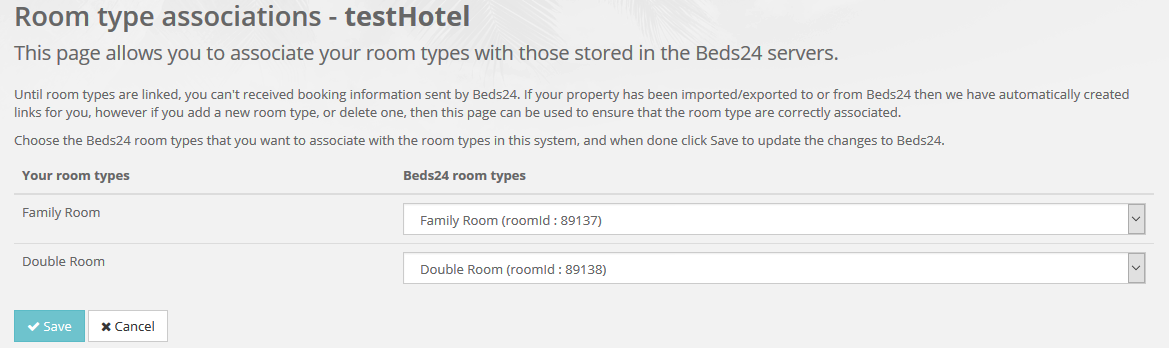
The first thing you see on this page is the Room Type linking section
You wouldn't normally need to make changes to this section. Newly created rooms in Bookyflow should automatically be exported to Beds24, however if this hasn't happened for some reason, or because you want to change the room types linked, you can modify the associations in this section.
Notification url
The next section is for the notication url that is stored in Beds24.

You cannot manually change the information in this input, it's here to allow you to copy and paste the notification url from Bookyflow into Beds24, which you will need to do if you imported this property from Beds24 and into Bookyflow.
If you did import the property, then copy the url into your clipboard then click on the Direct Link button, a new tab will open in the browser and you will be taken to a page in your Beds24 account that looks like this :
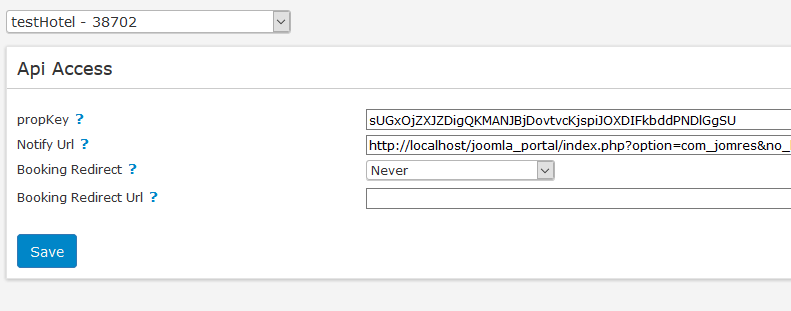
Note that whilst the urls displayed here show "localhost", this is not a valid domain and you cannot install the plugin into your "localhost" installation and expect notifications FROM beds24 to Bookyflow to work. Notifications from Bookyflow TO Beds24 would however work and bookings can be exported from Bookyflow to Beds24. In reality you would need your Bookyflow installation to be hosted on a fully qualified domain.
Property API key
The PropertyAPI key section is for information purposes.

Bookings Import/Export
The final section on the page offers two buttons, one to import bookings, one to export bookings.

When a property is imported or exported to Beds24 bookings themselves are not automatically imported or exported. You can do that using these buttons, if you wish, to ensure that the two systems are in sync. Once you have done this once, you will not need to do it again, this is purely part of the initial setup routine.
Import a property
Importing a property from Beds24 into Bookyflow is very similar to exporting a property, but there is one small difference in the steps.
When you click the Import button the next page will look like this :
On the left hand site you will see the room types as they are stored in Beds24.
On the right hand side you will need to choose the correct room types from the dropdown that correspond with the room types as stored in the Bookyflow installation. It is very important that each room type in Beds24 be connected to a different room type in Bookyflow, so do NOT, for example, link all the different room types with just one Bookyflow room type like "Double room", each should be different. If you do not do this then bookings behaviour will be unpredictable. If you do somehow get this wrong, it can be fixed as described up above in the View Property -> Room type linking section.
Once you have linked properties, you should not need to do anything else. Bookyflow will receive and send booking notifications to the channel manager, and the channel manager will forward these notifications on to the OTAs.
Tariff exporting
If you have a lot of complex tariffs then Bookyflow will not be able to automatically export complex tariffs into Beds24, however you can easily export them manually to specific tariff&rate slots in Beds24. You will need to enable the Enhanced Daily Prices function in Beds24 first.
First of all you need to ensure that your property is setup to use the Micromanage or Standard tariff editing modes, and that you have some tariffs.
Next, ensure that the automatic export feature in this setting is set to No
Now when you are on the display property page in the Channel Management (Beds24) page you will see this section :
For each tariff you want to export, click on the numbered button, P1 thru P10 to export it into that specific slot in Beds24.
iCal files
As stated earlier, channel management is a complicated business. In a perfect world your property managers would be familiar with the concepts required to understand the business of linking properties and rooms and they would do that all for themselves.
The truth is that property managers come from all walks of life. Managing their properties in your Bookyflow site to sell bookings is likely just a small part of their business activities and they will not have the time to jump through various hoops so instead of using Channel Management functionality, you can direct them to use iCal file linking.
Which you choose is a business decision for you to make. Either you need complete sharing of properties across multiple OTAs, or you want to offer a simple process that prevents double bookings without the complete sharing experience. It’s your task to decide what kind of balance is most important to you.
NB : This isn’t an either/or decision. It is possible to use both iCal booking sharing and Channel Management on the same Bookyflow site, but understand that the two plugins do not interact with each other. Therefore you could use iCal files to share bookings with sites that your Beds24 is not connected to, but you should not setup iCal sharing with OTAs that your Beds24 account is already connected with, otherwise you may be sending bookings twice via two different mechanisms.
Installation
First, you will need to install the Bookyflow iCal plugin in the Bookyflow Plugin Manager.
Property manager menu options
Once you have done that, in the property manager’s menu some new options appear.
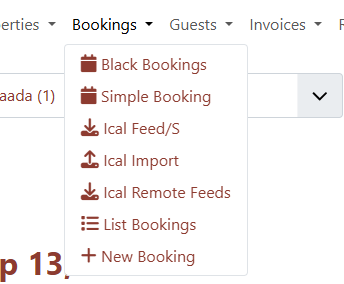
You can also export individual bookings from the list booking and edit booking pages.
iCal feeds
The iCal feeds page shows urls for sharing with other devices :
Two different urls are available, a feed url and an anonymised url. In the latter guest details are not revealed, just the period of the booking.
iCal Import
You can use this menu option to import an entire ics file and it’s bookings.
When importing an iCal file, the Event end date should be the departure date of the guest. The Summary should be the Guest's name. Event description can contain all other details. When the event is added, it's created as a black booking so there are no invoice or guest details for these "bookings".
Remote feeds
Remote feeds are links from remote sites that you can use to import bookings into your Bookyflow property. These are scheduled tasks so they are imported automatically.
You can create links to iCal files on other websites that will be imported every quarter of an hour. This allows you to pull bookings from other sites such asAirBNB etc.
To change the frequency of the imports, you can trigger pseudocron jobs using your server's cron functionality. See the Site Configuration >Cron jobs section of this manual.