Multilanguage Sites
Bookyflow works with both Joomla and Wordpress translation plugins.
As described in the Translations section, Bookyflow has its own translation functionality built in. There is no need for you to translate Bookyflow using any plugin. So long as it recognises when a language switcher has been used to set the currently active language, then it will automatically switch language.
Joomla
In Joomla, once the multilanguage feature is set up, you`ll need to create bookyflow->default menu items, one for each language, so that bookyflow will have an itemid and alias for each language.
If you are translating property names, to ensure that urls are created with the translated property name please ensure that you have set "use unicode aliases" to Yes in the Joomla Global Configuration.
Official Joomla documentation :
Joomla 4: https://docs.joomla.org/J4.x:Setup_a_Multilingual_Site
Joomla 5: https://docs.joomla.org/Special:MyLanguage/J5.x:Managing_Multiple_Homepages_in_One_Menu
Wordpress
In Wordpress, you`ll need to create a Page for each language, in which you`ll need to use a language specific Bookyflow shortcode. So for example, for UK English, you`ll need to use [bookyflow:en-GB] and for Spanish, you`ll need to use [bookyflow:es-ES] on the Spanish page.
For Wordpress we have found that Polylang is a good choice.
Max Input Vars (max_input_vars in php.ini)
What is it, and why do you need to change this setting?
max_input_vars is a setting managed through the PHP setting file (php.ini) which limits the number of inputs (fields) you can set when posting forms.
The Micromanage and Standard tariff editing modes allow you to have precise control over the price of each and every day in your property, for each room type. The form has two sets of settings, one for the price, and one for the minimum interval ( minimum length of a booking that might occur on that date to be able to use that tariff ).
As there are 365 days in the year, then for setting prices for the next year, there are 365 inputs. For setting the min interval, there are another 365 inputs, making the total number of inputs (form fields) 730 + 11 other fields.
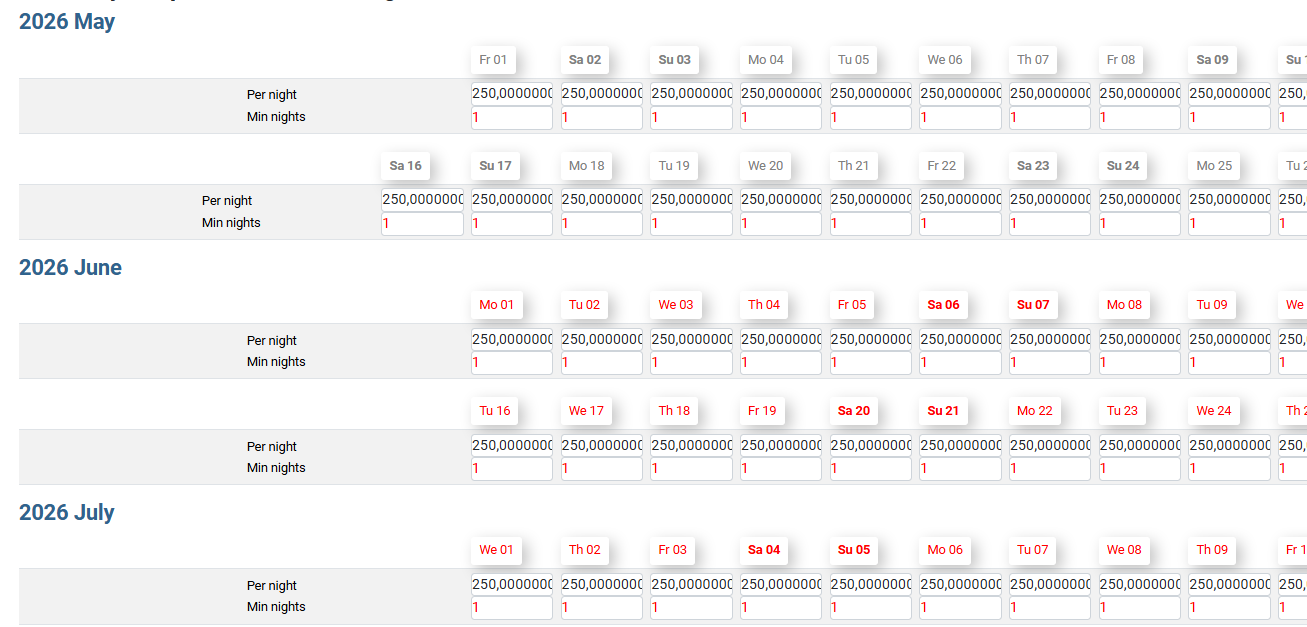
In Property Configuration it is possible to set the max number of years to show a higher number. It allows those managers who can set their prices much further into the future to do so.
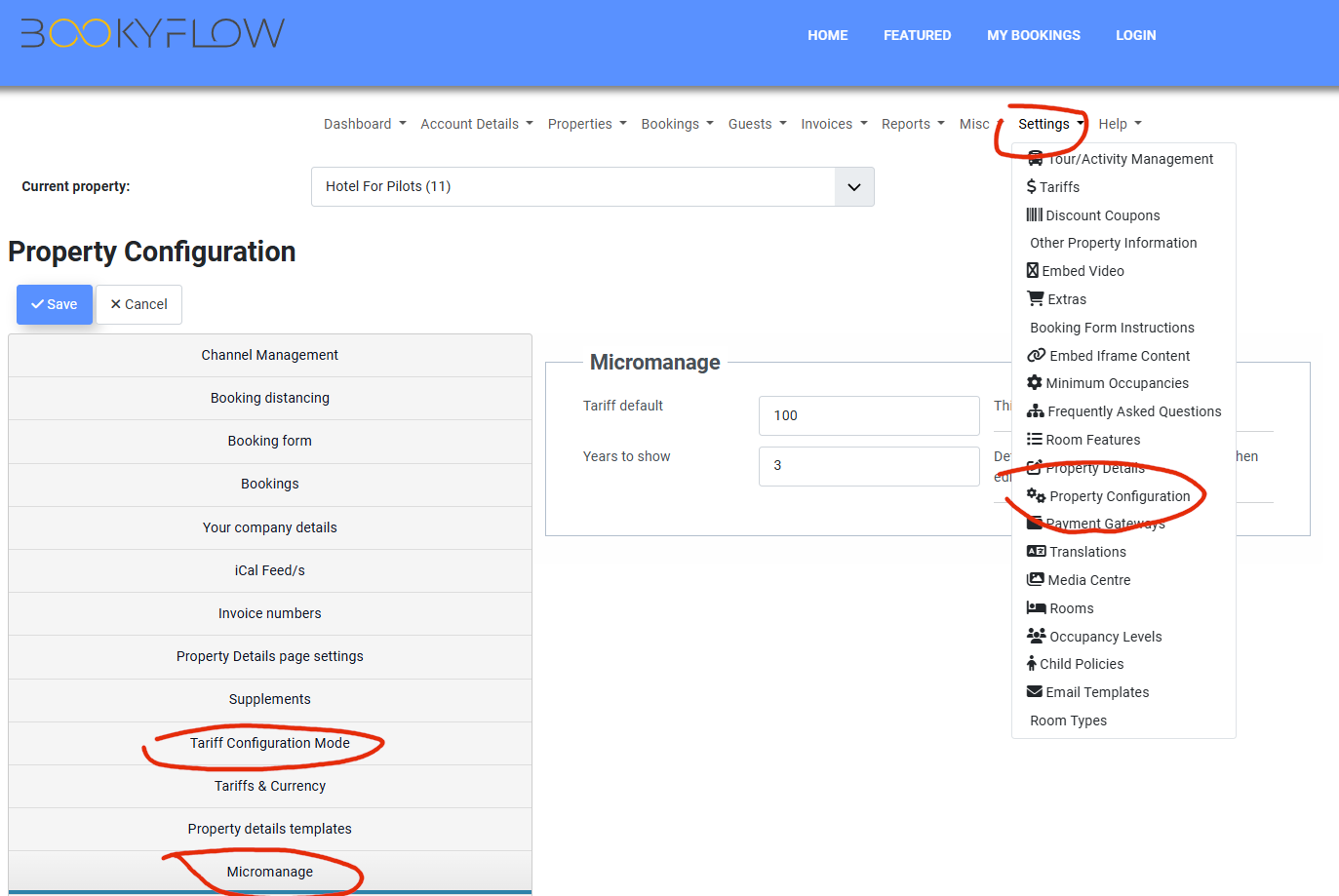
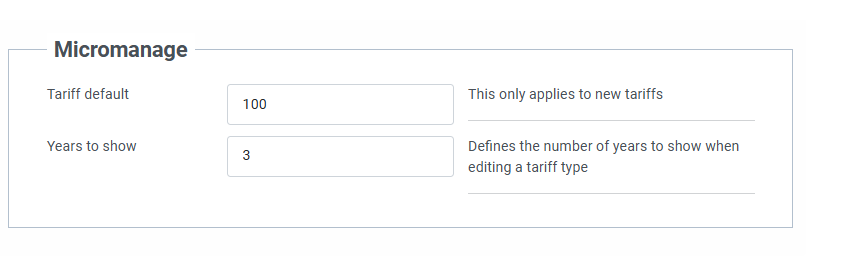
If this setting is changed, for example, to 2 then the number of inputs in the form becomes 1460 + 11
This, however, conflicts with the default PHP settings and some hardened security modules that set their own limits. In the administrator area Bookyflow will show you a message that looks like this.
What happens if I don't change this setting?
If this setting isn't changed and a user tries to set prices for more than one year in advance, when they click Save then the tariff will not be saved and they will be returned to the default Bookyflow page (the Dashboard).
What can you do?
Edit php.ini
If you are able, you can directly edit the php.ini file and set the max input vars setting, however it is very unlikely that you will be able to modify this file if you are on shared hosting.
Edit .htaccess
Most users, however, will be able to modify the .htaccess file in the website's root directory (the directory where the Joomla or Wordpress index.php file is). In there you can add the following lines
php_value max_input_vars 3000
You may also need to add these lines, ask your hosting service if you’re not sure
php_value suhosin.get.max_vars 3000
php_value suhosin.post.max_vars 3000
php_value suhosin.request.max_vars 3000
For all these setings, you can input a value of 3000 or higher if allowed.
Once you have done that, then the warning should go away and your users will be able to save complex tariffs over longer periods.
Alternatively you can ask your hosting provider to set this php_value max_input_vars to as high as possible.
Edit via cPanel
If you are using a hosting package that uses cPanel, then you can also make these changes through the cPanel user interface.
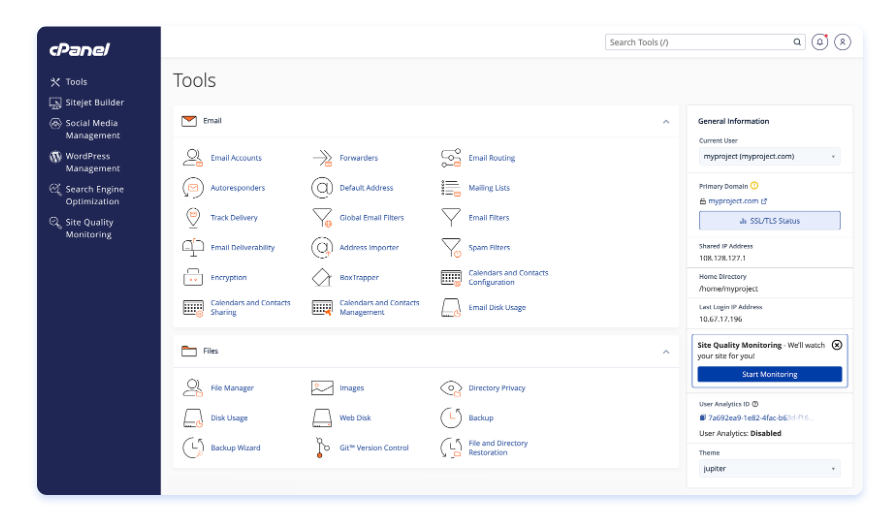
Some hosts have their own configuration functionality, for example goDaddy allow you to use the .user.ini file to set max_input_vars in godaddy
If you are in any doubt, please check your hosts's help pages on their website, failing that contact them directly to confirm the correct method of setting max input vars on their servers.